Attaching/Removing the Stand
Removing the Stand
You can remove the stand of this product.
Attention
- Do not move the stand up and down after removing it. If you move the stand up and down while it is not attached to the monitor, this may cause damage or injury.
- If you drop the monitor or stand, this may cause damage or injury due to the weight of the monitor and stand.
- Do not put your fingers into the gaps of the moving parts of the stand.
- Raise the height of the monitor to the maximum height.
Attention
- If the monitor is not raised to the maximum height, there may be cases when the height of the monitor accidentally changes while removing the stand. This may be the cause of injury or damage.
- Lay the LCD panel face-down on a soft cloth or cushion placed on a stable surface, ensuring the entire panel is evenly supported to prevent scratches.
- Remove the stand.
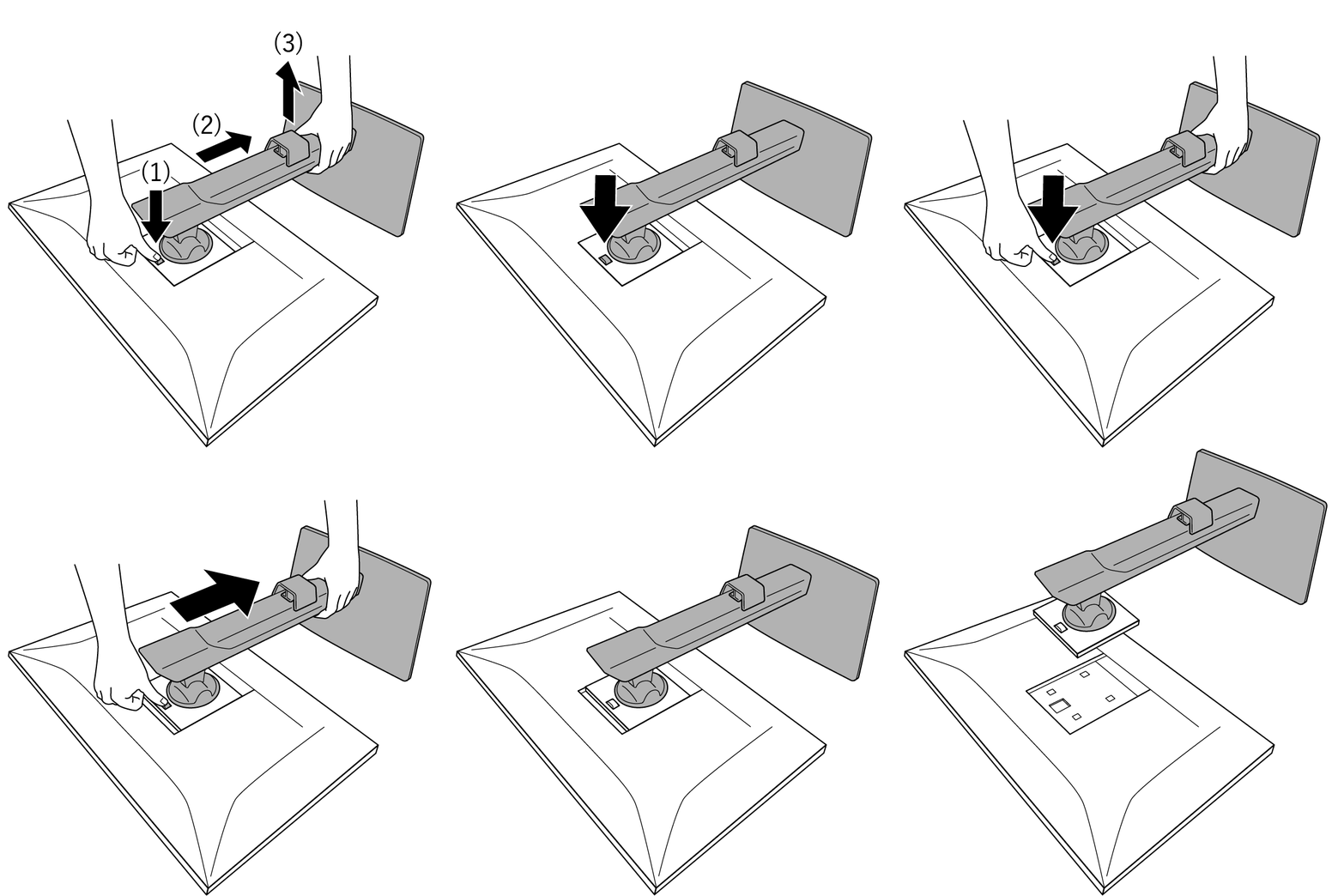
- As shown in the diagram, press the lock button (1) while holding firmly onto the brace of the stand, and slide the stand in the direction of the pedestal on the bottom (2). Next, pull the stand upwards to remove it (3).

Attaching the Optional Arm
Removing the stand allows you to attach an optional arm (or optional stand). By attaching the monitor to a monitor arm, the screen can be rotated 180˚ (flipped vertically) and used in a multi-monitor configuration. Please refer to our web site for optional arms (or optional stands) that are supported.
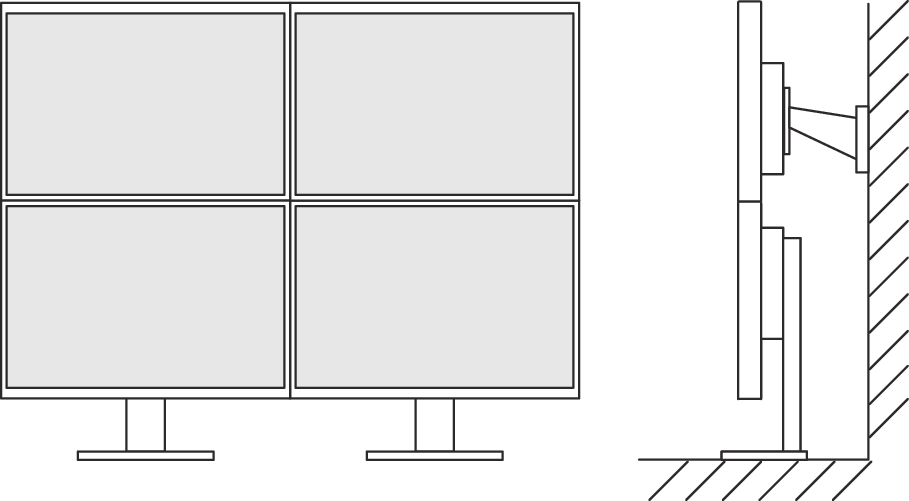
When attaching a monitor arm or stand, the installable orientations and angles (tilt angles) are as follows:
- Orientation
- Installation angle (tilt angle): when not using an edge support
- Installation angle (tilt angle): when using an edge support
- If you install the monitor by rotating it 180 degrees, clean the power connector and the surrounding area regularly. Dust, water, or oil adhered to this area may result in fire.
- When installing at an angle between 5˚ and 45˚ downward, the warranty is only valid if the edge supports have been attached. If the monitor is used in these positions without the edge supports, the front panel may come away. If you require edge supports, contact the EIZO group company or distributor in your country or territory (www.eizoglobal.com/contact/ ).
Attention
- When attaching an arm or stand, follow the instructions of the respective User's Manual.
- When using a monitor arm or stand of another manufacturer, confirm the following in advance and select one conforming to the VESA standard:
- Clearance between screw holes: 100 mm x 100 mm
- Arm or stand VESA mount dimensions: 122 mm x 122 mm or less
- Plate thickness: 2.6 mm
- Strong enough to support weight of the monitor unit (excluding the stand) and attachments such as cables
- Connect the cables after attaching an arm or stand.
- Do not move the removed stand up and down. Doing so may result in injury or device damage.
- The monitor, arm, and stand are heavy. Dropping them may result in injury or equipment damage.
- Check the tightness of the screws periodically. If the screws are not tight enough, the monitor may become unattached. This may be the cause of injury or damage.
- Attach the arm or stand to the monitor.
- For installation, use commercially available screws that meet the following conditions:
- Nominal diameter: M4
- Length: Between 7.6 mm and 11.4 mm (if using washers, add the washer thickness)
Attaching the Original Stand
- Lay the LCD monitor on a soft cloth or cushion spread over a stable and flat surface with the LCD panel surface facing down.
- Remove the fixing screws on the optional arm (or optional stand), and detach the optional arm (or optional stand).
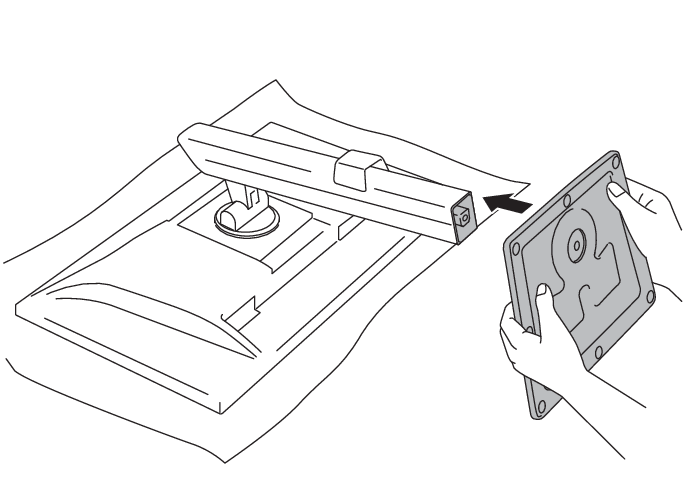
- Fit the monitor mount into the stand post. The installation is complete when it clicks into place.
- Attach the original stand.
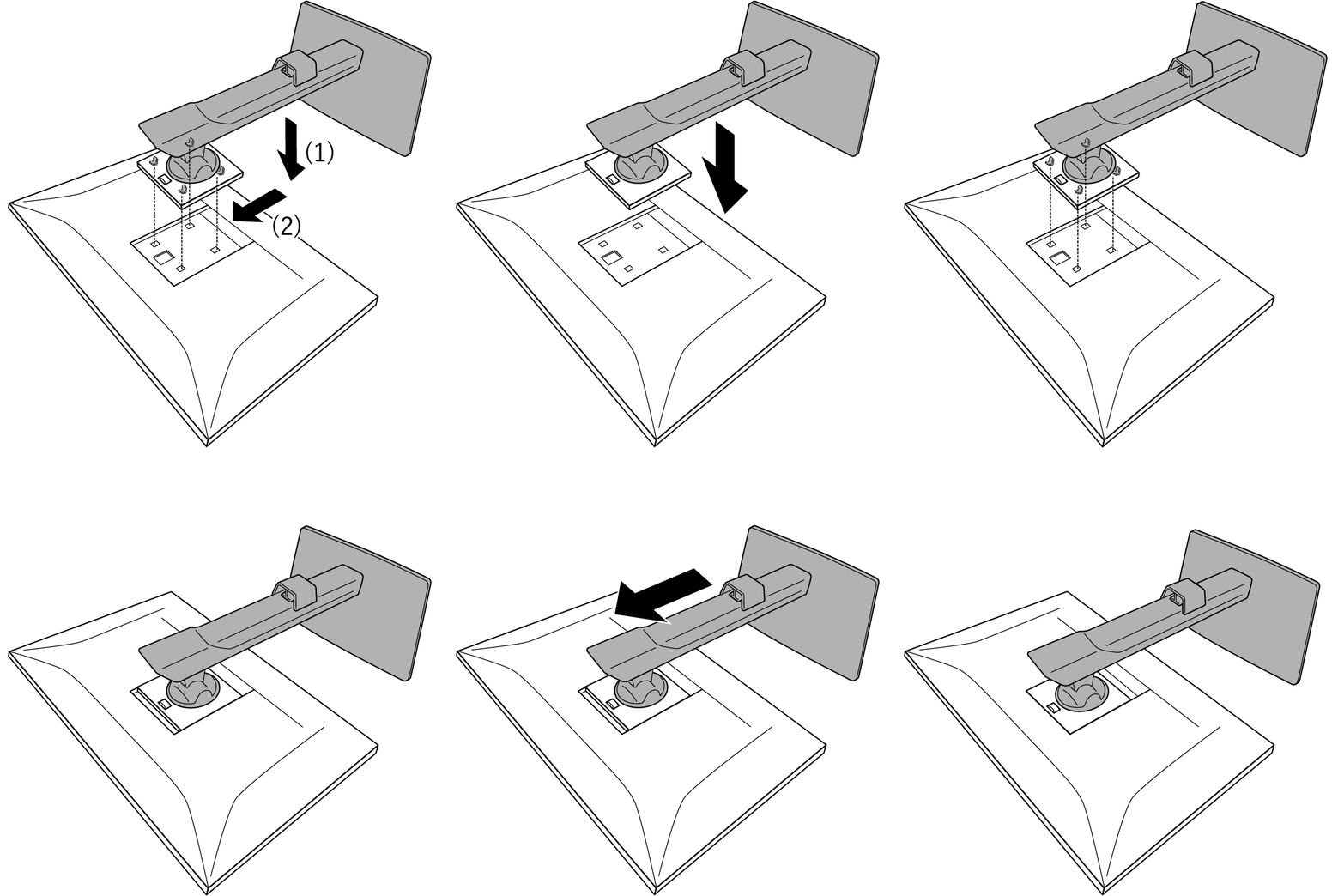
- Insert the four tabs on the stand into the four holes on the back panel (1), and slide the stand towards the upper portion of the monitor (2). The stand clicks when it is attached correctly. Check that the stand is properly attached by pushing it side to side and back to front.
How to Install Edge Support
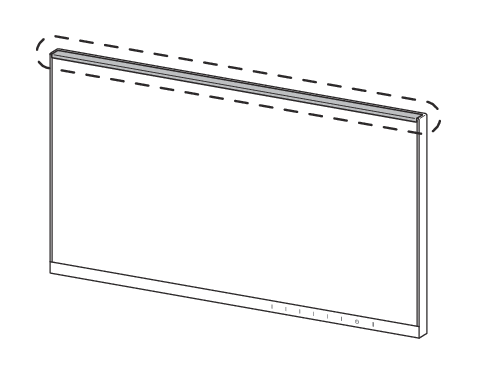
Mounting Position
Mounting Procedure
Attention
- When installing the edge support, be careful not to hold down the screen with your hands. The LCD panel surface may be scratched or damaged.
- Once installed, do not peel off the edge support and reuse it. Also, do not use if there is dirt on the adhesive surface of the edge support. The adhesive strength may have decreased.
- Thoroughly wipe top side of the monitor with a cleaning cloth or similar, and allow to dry.
- Peel off the backing of the double-sided tape on the edge support.
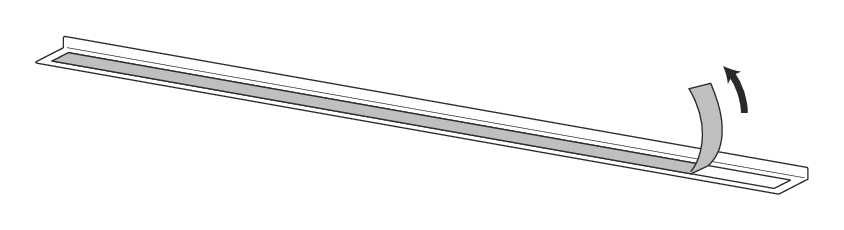
- While being careful not to let the double-sided tape of the edge support stick to the monitor, align one end of the edge support with the inside of the monitor frame.
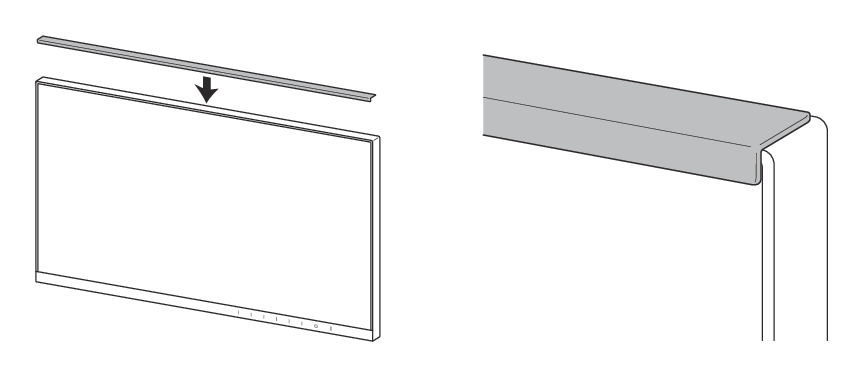
- Make sure there is no gap between the LCD panel surface and the edge support, then attach the edge support to the aligned position.
- Rub the top surface of the edge support with your finger to ensure it adheres firmly.
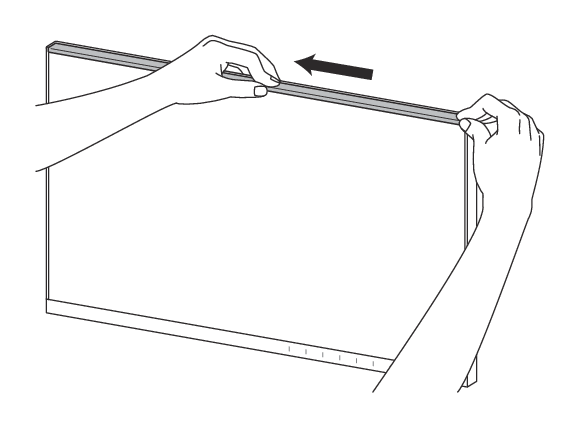
- Make sure the edge support is attached securely.
Removing the Stand Base
You can remove the stand base attached during setup by following the steps below.
- Lay the LCD monitor on a soft cloth or cushion spread over a stable and flat surface with the LCD panel surface facing down.
- Remove the stand base by loosening the screws (1 location) on the bottom of the stand base.
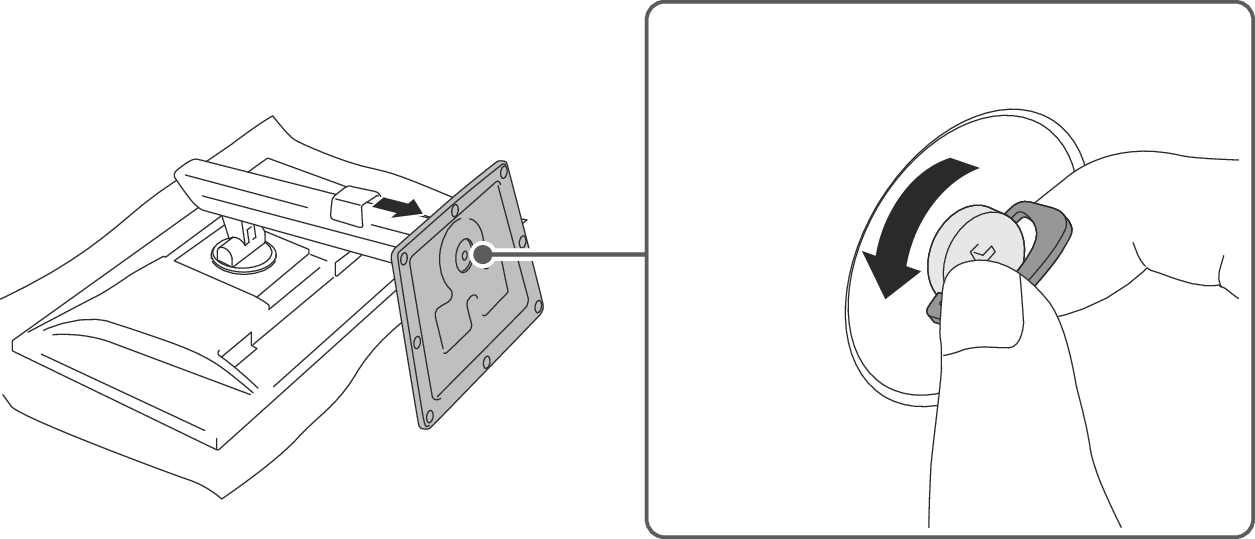
Attaching the Stand Base
Once the stand base has been removed, it can be reattached to the monitor by following the steps below.
- Lay the LCD monitor on a soft cloth or cushion spread over a stable and flat surface with the LCD panel surface facing down.
- Once you remove the stand base, you can reattach it to the monitor by following the steps below.
- Tighten the screws (1 places) on the bottom of the stand base securely, then push the lever down.
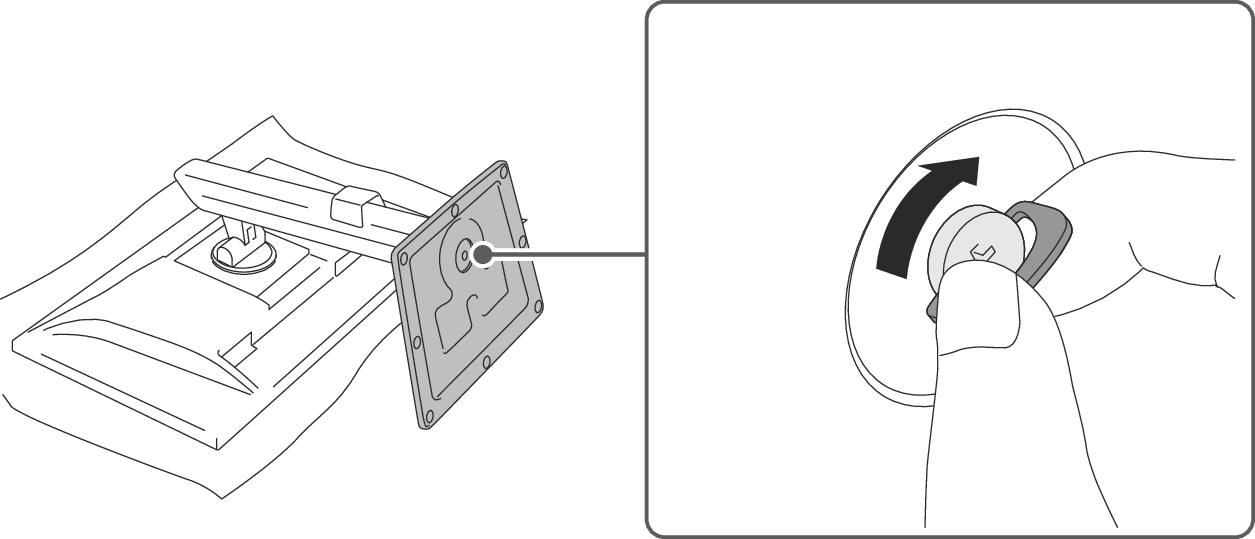
- Ensure that the stand is locked.
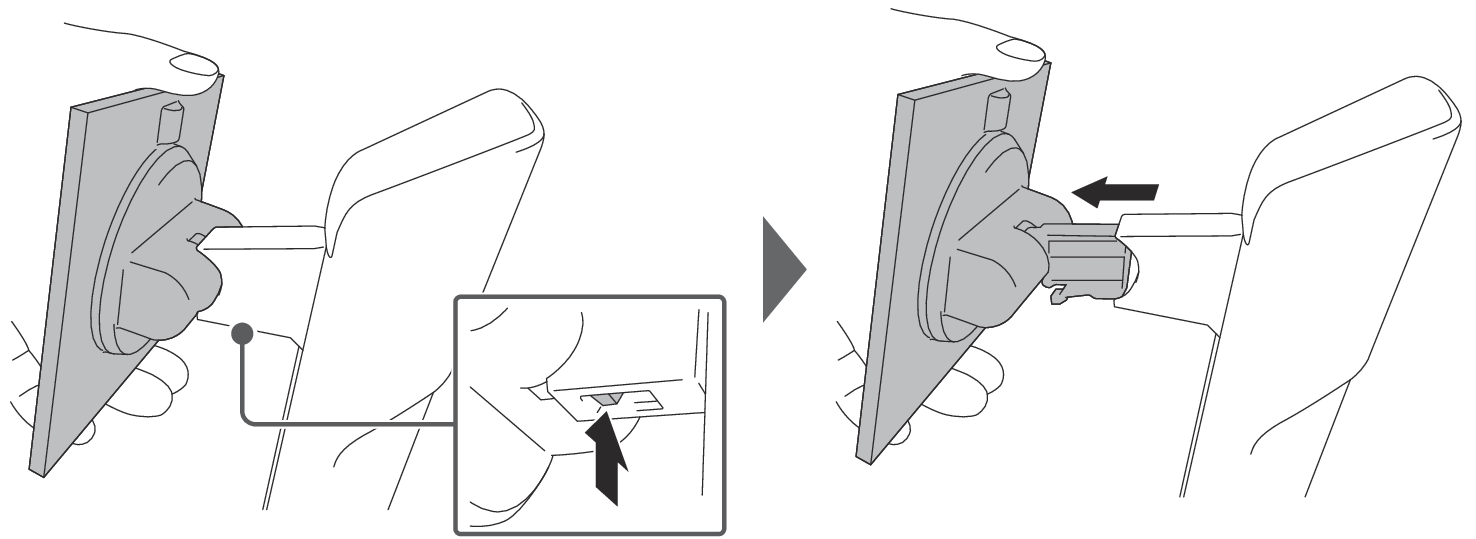
How to remove the monitor attachment
Remove the monitor section from the stand before proceeding (see Removing the Stand).
Perform this procedure only when necessary, such as when repacking.
Remove it while pressing the lock button with your fingertip.
How to attach the monitor attachment
Fit the monitor attachment into the stand post.
The installation is complete when it clicks into place.
Confirm that the monitor attachment is locked.